This guide is for account owners and admins who pay many affiliates at once through PayPal or Wise while keeping payout status and audit history in AffiliateBase.
AffiliateBase does not auto-send PayPal or Wise transfers. It prepares the payout records and a provider-specific export file. Your team sends the money in PayPal or Wise, then marks the confirmed payouts paid in AffiliateBase.
The workflow has three parts:
- Create and download a payout export in AffiliateBase.
- Pay the batch in PayPal or Wise.
- Reconcile the confirmed payment back in AffiliateBase.
Before You Start
Confirm the AffiliateBase setup:
- Your account Payout method is set to PayPal or Wise.
- Affiliates have the matching PayPal or Wise details saved in the affiliate portal.
- Commissions have reached
dueafter your campaign’s commission delay. - You have chosen your payout cadence and currency.
Confirm the provider setup:
- Your finance owner can access the PayPal or Wise account that will send funds.
- PayPal Business has Payouts access enabled (a PayPal requirement, not an AffiliateBase setting).
- PayPal has enough balance in the payout currency to cover the payout total and fees.
- Wise Business is verified.
- The Wise team member processing the batch can create and pay for batch payments.
Create the Export in AffiliateBase
- Open Payouts in AffiliateBase.
- Select New Payouts, choose the eligible affiliates, and select Create payouts. Leave Execute payouts immediately unchecked; PayPal and Wise payouts are paid from the export.
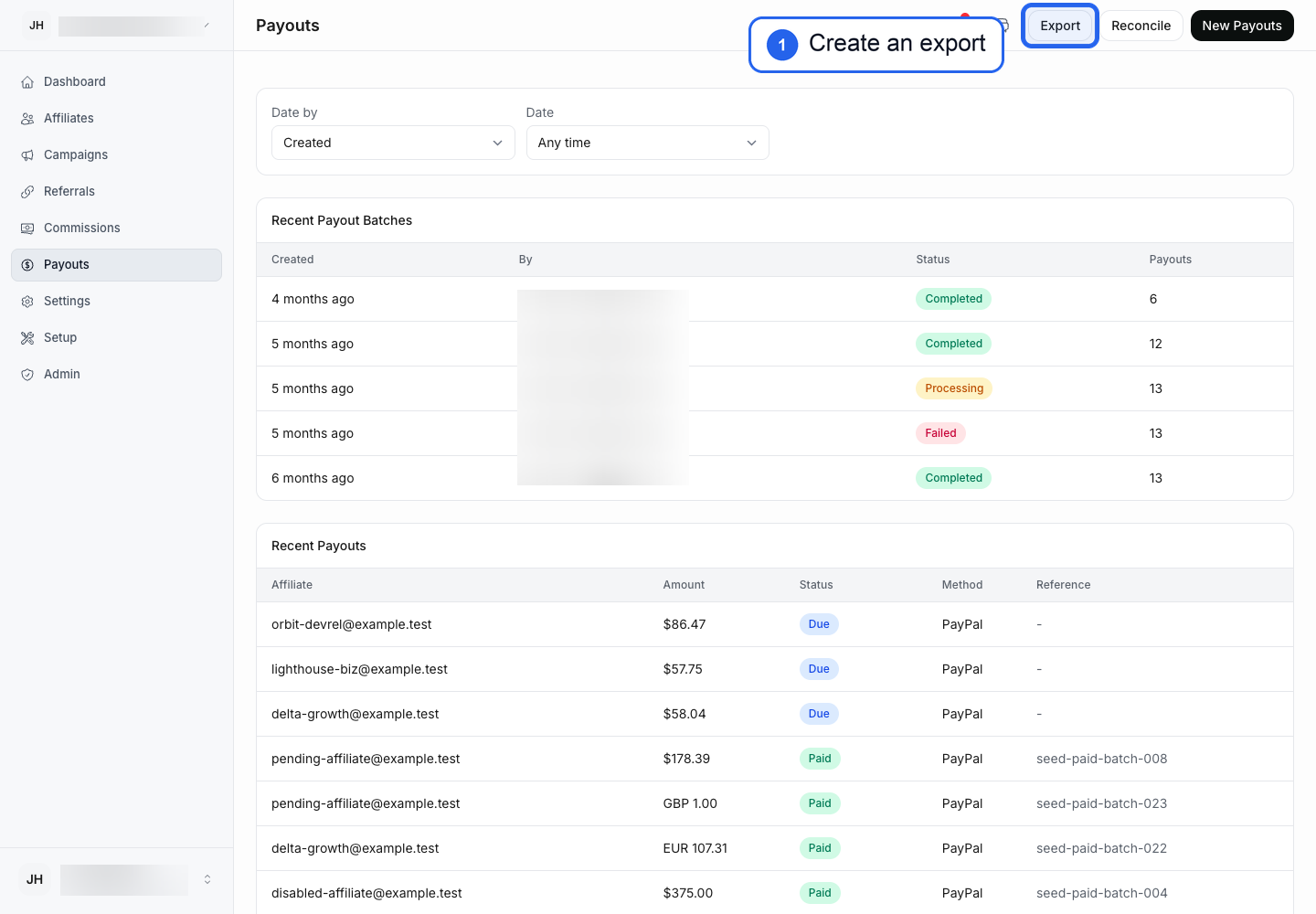
- Select Export. The export lists only payouts that already exist, so it shows “No payouts are currently eligible for export.” until you create them.
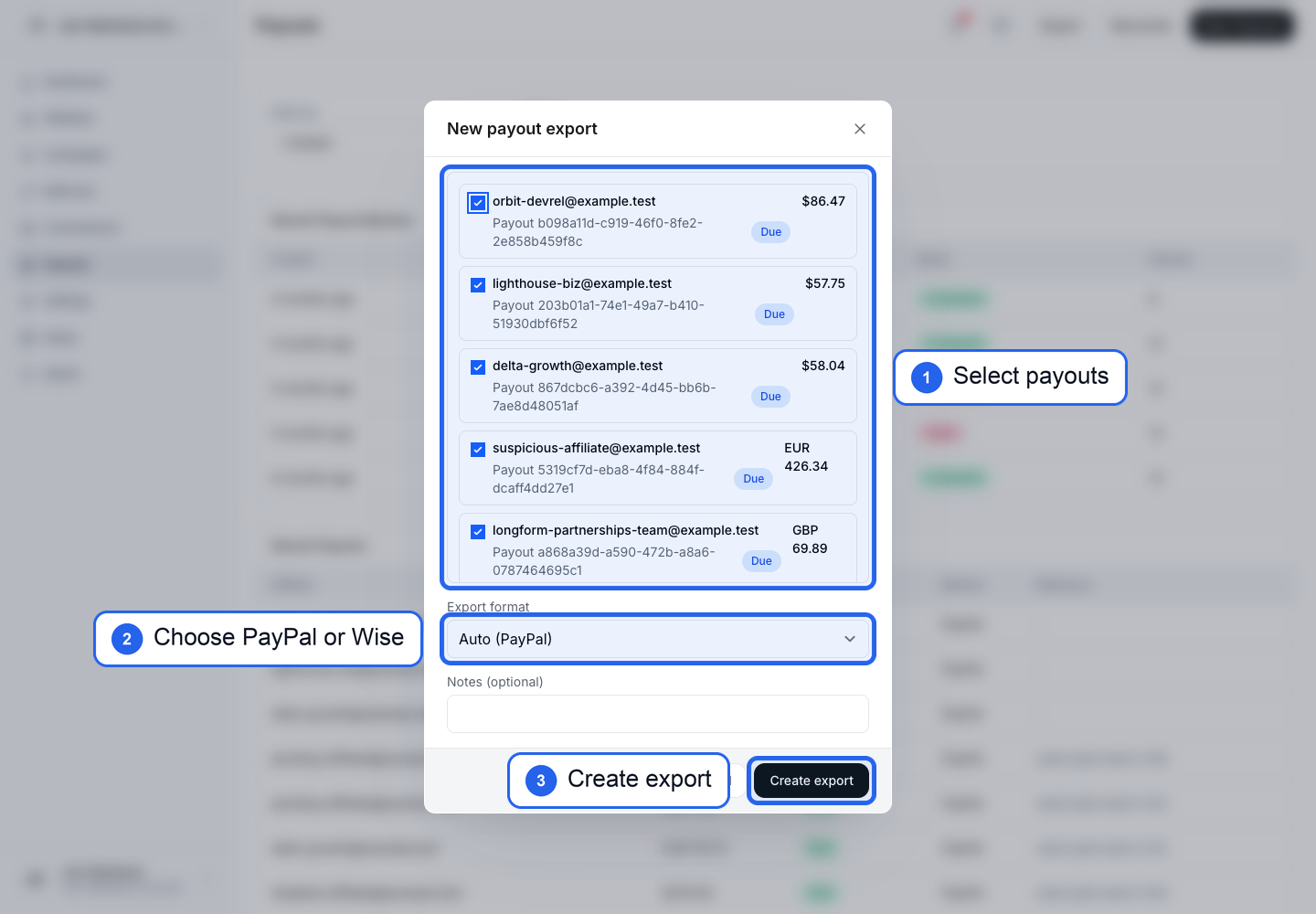
- Select the payouts to include.
- In Export format, choose PayPal or Wise. Auto uses your account’s payout method, and Generic CSV is for other tools.
- Select Create export.
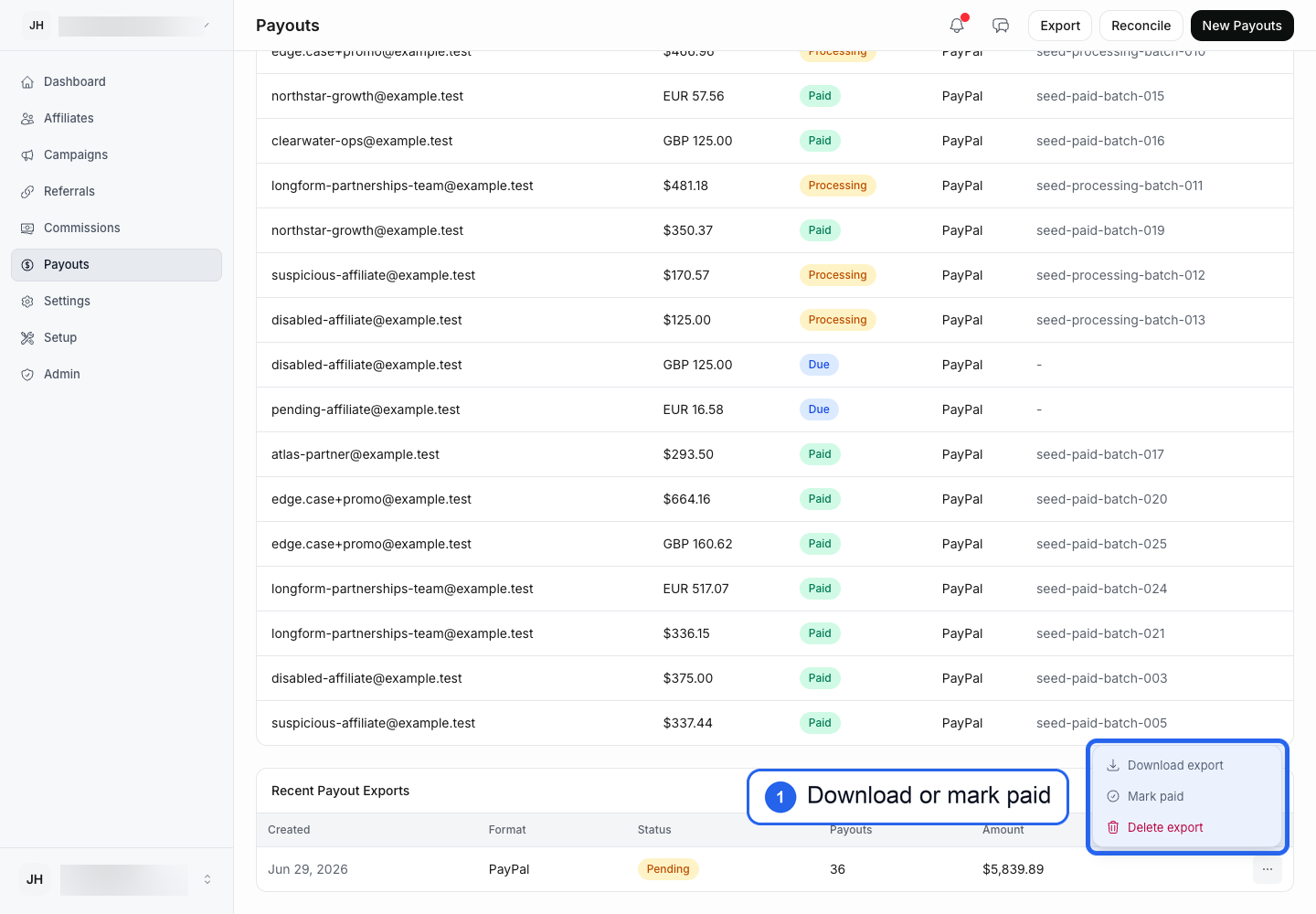
- In Recent Payout Exports, open the actions menu for the new export.
- Select Download export.
Do not select Settle payouts yet. Leave the export unpaid in AffiliateBase until PayPal or Wise confirms the money was sent.
Amounts and Spreadsheet Safety
- Amounts are written in the payout currency’s own units: two decimals for most currencies (
12.50), whole units for zero-decimal currencies such as JPY (1250), and three decimals for three-decimal currencies such as KWD. Do not rescale them before uploading. - Any value (such as an affiliate name or email) that starts with
=,+,-,@, a tab, or a carriage return is written with a leading apostrophe so spreadsheet apps cannot run it as a formula. Open the file in a spreadsheet only to review it. Upload the original download to PayPal or Wise.
PayPal Bulk Payouts
Use the PayPal export to pay a payout run through PayPal.
AffiliateBase creates a PayPal Payouts Web CSV file. PayPal expects one recipient per row and no header row.
The file includes:
- Recipient identifier: the affiliate’s PayPal email.
- Payment amount.
- Currency.
- Customer ID: the AffiliateBase affiliate ID.
- Note to recipient.
- Recipient wallet:
PAYPAL.
Pay Affiliates in PayPal
- Log in to your PayPal Business account.
- Go to Business Tools -> Make Payments -> Payouts.
- Start a Payouts Web or mass payment upload.
- Choose the PayPal CSV file you downloaded from AffiliateBase.
- Let PayPal validate the file.
- Review the recipient count, amounts, currency, and fees.
- Submit the payout.
- Open the PayPal payout activity or transaction details.
- Confirm the payout is processed before you select Settle payouts on the export in AffiliateBase.
PayPal accepts up to 5,000 payments per uploaded file. If you are paying multiple currencies, use a separate AffiliateBase export or provider file for each currency.
Do not mark rejected, denied, duplicate, or unconfirmed PayPal rows as paid in AffiliateBase. Fix the affiliate’s PayPal email or the payment issue, then follow If Only Some Rows Were Paid for the export.
Wise Batch Payouts
Use the Wise export to pay a payout run through Wise.
AffiliateBase creates a Wise batch payment CSV file for email-based Wise recipients.
The file includes:
- Affiliate name.
- Recipient email.
- Payment reference: the AffiliateBase payout ID.
- Receiver type.
- Amount currency (
source). - Amount.
- Source currency.
- Target currency.
- Email recipient type.
Pay Affiliates in Wise
- Log in to Wise Business on the web.
- Go to Payments -> Batch.
- Choose the email-based batch payment flow.
- Upload the Wise CSV file you downloaded from AffiliateBase.
- Let Wise validate the file.
- Review each transfer, the total amount, currencies, and fees.
- Pay for the batch from your Wise balance or the funding method Wise offers.
- Track the transfers in Wise until the successful payments are confirmed.
- Return to AffiliateBase and select Settle payouts on the matching export.
Wise supports up to 1,000 transfers in a batch file. If Wise rejects a row, leave that AffiliateBase payout unpaid until the recipient details or payment issue is resolved.
Reconcile in AffiliateBase
After PayPal or Wise confirms that every row in the AffiliateBase export was paid:
- Return to Payouts in AffiliateBase.
- Find the export in Recent Payout Exports.
- Open the actions menu.
- Select Settle payouts.
- Keep the PayPal payout ID, Wise batch ID, or provider confirmation in your finance records.
Settling an export changes the included payouts and commissions to paid. It may also notify affiliates that their payout was marked paid.
Settle payouts settles the whole export at once. Payouts whose commissions were all voided are skipped and do not block settlement. If any payout in the export can no longer be settled from it, AffiliateBase refuses and leaves every payout in the export unchanged. This happens when a payout:
- is no longer part of the export
- has already started provider execution or has an external payment recorded
- has attached commissions that no longer add up to the payout amount
Review the affected payout, then create a new export if needed.
If Only Some Rows Were Paid
Do not select Settle payouts if PayPal or Wise only paid part of the file. Settle payouts marks every payout in the export paid, including the rows that failed.
An export can only be voided before it is downloaded (Void export before download). Once you have downloaded it, you can’t void or split it, so settle it only after every row is paid:
- Save the provider confirmation showing which rows succeeded and which failed.
- Leave the export unsettled in AffiliateBase.
- For each failed row, correct the affiliate’s details with them, then pay that affiliate directly in PayPal or Wise.
- Once every row in the export is paid, select Settle payouts.
Do not re-upload the original full file after a partial success. That can duplicate payments for affiliates who were already paid.
Test-Mode Launch Checklist
Before launch, you can test the whole flow without AffiliateBase moving money:
- Create a test affiliate and test referral.
- Confirm the Stripe test conversion creates a commission.
- Let the commission reach
dueafter your campaign’s commission delay. - Create a payout run.
- Generate the PayPal or Wise export.
- In PayPal or Wise, confirm whether your provider account supports a sandbox, preview, or validation-only review for the file.
- Make sure your finance team knows where to find provider confirmation.
- Select Settle payouts on the test export only after the provider confirms every row was paid.
AffiliateBase test mode covers tracking, commissions, payout creation, export generation, and reconciliation. Real money still moves only in PayPal or Wise.
Troubleshooting
No Payable Payouts Appear
Check:
- You created payouts with New Payouts first. Export lists only existing payouts.
- Commissions are
due, not stillpending. - Affiliates are active. Commissions for affiliates marked suspicious are held until you approve the affiliate or review each commission.
- The campaign’s Minimum payout is met.
- Clawbacks from refunds or disputes after an earlier payout are deducted from the affiliate’s earnings in the same currency across campaigns. A clawback larger than those earnings holds them.
- Your account Payout method matches the details affiliates entered (PayPal email or Wise email).
Export Is Missing Recipients
Check:
- If an affiliate has no PayPal (or Wise) email saved, the export uses their login email instead. Check every recipient before uploading.
- New Payouts lets you select only affiliates who have details for your current payout method. Payouts created under a different payout method may be missing them.
- The affiliate saved details before you created the export.
Provider Rejects a Row
Leave that payout unpaid in AffiliateBase and do not settle the export. Update the affiliate’s payout details, then follow If Only Some Rows Were Paid. A payout in a downloaded export cannot be added to a new export.
Some Rows Succeed and Others Fail
Do not select Settle payouts on the original export. A downloaded export cannot be voided or split in AffiliateBase. Pay the failed rows directly in PayPal or Wise, then settle the export once every row is paid. See If Only Some Rows Were Paid.
PayPal Warns About a Duplicate File
PayPal may warn you if the same file was uploaded recently. Before you submit again, confirm whether the earlier payout already sent funds.
Wise Asks for More Recipient Details
Wise may require additional recipient information depending on the destination country, currency, or transfer method. Add the missing details in Wise or collect them from the affiliate before paying the batch.
Official Provider References
- PayPal Payouts Web
- PayPal Payouts Web UI guide
- Wise guide to batch payments
- Wise batch payment templates